
Looking for a broader overview? Check out our comprehensive guide on AI Productivity & Workspace 2026: Everything You Need to Know.
How to Use Motion for AI Productivity & Workspace in 2026
The promise of AI has always been to streamline our lives, to hand off the tedious, repetitive tasks so we can focus on what truly matters. In the realm of productivity, this often translates to calendar management, task prioritization, and meeting scheduling. While many tools nibble at the edges of this problem, few attempt to tackle the entire beast. Enter Motion – an AI-powered workspace that aims to be your personal operations manager, not just another task list.
I’ve spent a considerable amount of time with Motion, pushing its limits, integrating it into my daily workflow, and observing how it handles the unpredictable chaos of real-world projects. This isn’t a theoretical overview; it’s a practical guide based on hands-on use, designed to show you precisely how to leverage Motion in 2026 to reclaim your time and optimize your output.
Prerequisites / Getting Started with Motion
Before you can unleash Motion’s AI capabilities, there are a few foundational steps. Think of this as setting the stage for your AI assistant.
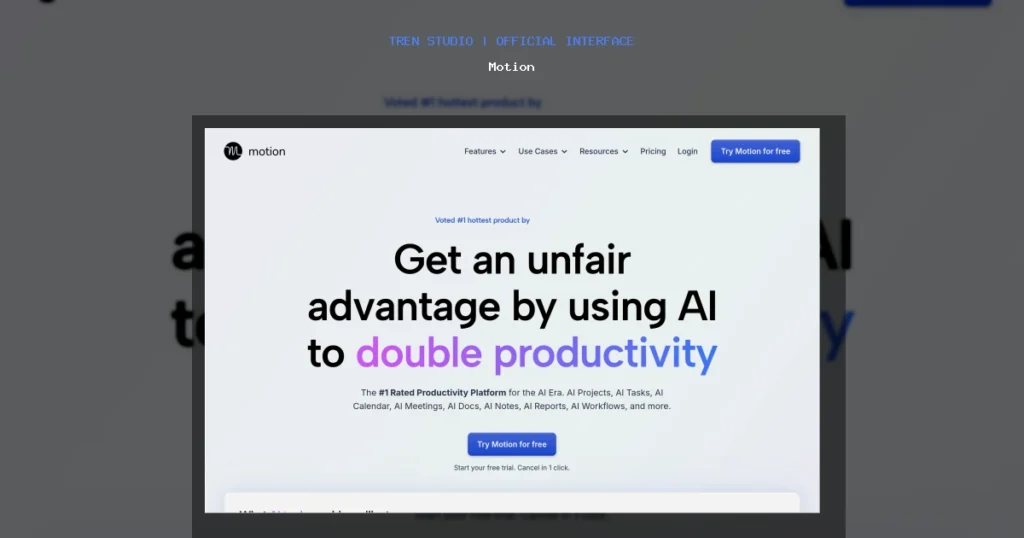
Motion Interface
Hardware Recommendation: Logitech Brio 4K webcam

- Motion Account: First and foremost, you’ll need an active Motion subscription. They offer a 7-day free trial, which is ample time to get a feel for its core functionalities. You can sign up directly on their official website: usemotion.com.
- Calendar Integration: Motion’s superpower lies in its ability to manage your time. This means connecting your primary calendar(s). Motion supports Google Calendar and Outlook Calendar. Without this, Motion is essentially blind to your existing commitments, and its scheduling AI won’t function effectively. Navigate to Settings > Integrations > Calendars and connect your accounts.
- Email Integration (Optional but Recommended): For features like automated meeting scheduling and email-based task creation, connecting your email (Gmail or Outlook) is highly beneficial. This allows Motion to parse incoming messages for potential tasks or meeting requests. You’ll find this under Settings > Integrations > Email.
- Basic Task Brainstorm: Before diving deep, take 15-20 minutes to jot down your most pressing projects and recurring tasks. This initial input gives Motion something substantial to work with. Don’t worry about perfection; you’ll refine this as you go.
Step-by-Step Guide: Using Motion for AI Productivity
Motion’s interface, while initially appearing simple, hides a depth of functionality. Let’s break down how to use its core features effectively.
1. Defining Your Projects and Tasks
The foundation of any productivity system is a clear understanding of what needs to be done. Motion handles this with Projects and Tasks.
- Creating Projects: Projects are high-level goals that contain multiple tasks. Think “Launch New Website,” “Complete Q3 Report,” or “Develop Marketing Strategy.”
- Go to the Projects tab in the left sidebar.
- Click + New Project.
- Give your project a clear, concise name.
- (Optional but Recommended) Assign a Due Date for the entire project. This helps Motion understand overall deadlines.
- (Optional) Add a brief description for context.
- Adding Tasks: Tasks are the actionable steps within a project.
- Within a project, click + Add Task.
- Enter the task name (e.g., “Write homepage copy,” “Analyze competitor data,” “Schedule review meeting”).
- Assign a Due Date: This is critical. Motion uses this to prioritize and schedule. If a task has no due date, Motion won’t know when it absolutely needs to be completed.
- Estimate Duration: This is perhaps the most important input for Motion’s AI scheduler. Be realistic. A “write blog post” task might be 4 hours, not 30 minutes. Motion uses this to block out time on your calendar.
- Priority: Motion allows you to set priorities (Low, Medium, High, Urgent). While Motion’s AI does a good job, manually assigning priority gives it an additional signal. Tasks marked “Urgent” will be prioritized above all else.
- Dependencies: This is an advanced feature but incredibly powerful. If “Design mockups” must be completed before “Develop front-end,” you can set a dependency. Motion will not schedule the dependent task until its predecessor is marked complete.
Testing Notes: I found that being overly granular with tasks initially can be counterproductive. Start with larger chunks (2-4 hour tasks) and break them down further only if Motion struggles to schedule them efficiently. The “Estimate Duration” field is where most people falter. Underestimate, and Motion will constantly reschedule. Overestimate, and you’ll find yourself with artificial gaps.
2. Leveraging Motion’s AI Scheduler
This is where Motion truly shines. Once you’ve populated your tasks, Motion’s AI gets to work, intelligently placing them into your calendar.
- Automatic Scheduling: Motion continuously scans your calendar, tasks, and priorities. When a gap appears, or a higher-priority task emerges, it dynamically shuffles your schedule. You don’t “run” the scheduler; it runs constantly in the background.
- Blocking Time: Motion doesn’t just list tasks; it blocks out specific time slots on your integrated calendar (e.g., Google Calendar). So, instead of seeing “Free,” you’ll see “Motion – Write Blog Post (10:00 AM – 12:00 PM).” This visual commitment is incredibly effective for focus.
- Rescheduling: Life happens. If a meeting runs over, or an urgent request comes in, Motion adapts. Simply drag and drop a scheduled task on your calendar to a new time, and Motion will adjust the rest of your schedule accordingly, always trying to meet your due dates. If you miss a task, it’ll automatically be rescheduled for the next available slot.
- “Working On” Feature: When you start a task, click the “Start” button next to it in Motion. This tells the AI you’re actively engaged, and it can help refine future scheduling by understanding your actual work patterns. When you complete it, mark it “Done.”
My Experience: The first few days with Motion felt a bit like a dance with a new partner. I’d set a task, and it would appear on my calendar. Then, an unexpected call would pop up, and Motion would instantly move my task. It felt almost magical. The key is to trust it. Resist the urge to manually manage everything once Motion takes over. The system learns from your interactions.
3. Smart Meeting Scheduling with Motion
One of the biggest time sinks for many professionals is the back-and-forth of scheduling meetings. Motion tackles this head-on.
- Creating Scheduling Links:
- Go to the Meetings tab.
- Click + New Meeting Template.
- Define the meeting type (e.g., “30-min Discovery Call,” “1-hour Project Review”).
- Set duration, buffer time before/after, and availability windows (e.g., “only Tuesdays and Thursdays from 1 PM – 4 PM”).
- Motion generates a unique link.
- Sharing Your Link: When someone wants to meet, instead of proposing times, send them your Motion scheduling link. They’ll see your real-time availability (pulled directly from your integrated calendar, respecting your existing commitments and even your scheduled Motion tasks!) and can book a slot.
- Automated Calendar Invites: Once they book, Motion automatically sends a calendar invite to both parties, including a video conferencing link if you’ve integrated one (e.g., Zoom, Google Meet).
- Team Scheduling: If you’re on a team plan, Motion can find the best time for multiple team members, respecting everyone’s availability. This is a lifesaver for internal meetings.
Real-world Use Case: As a consultant, I used to spend 15-20 minutes per client trying to find a mutual time for a call. With Motion, I just drop a link in an email. The client picks a time, and it’s done. This alone saves me hours each week. The AI ensures that even if I have a “Write Report” task scheduled, it can be intelligently moved if a client books a meeting during that slot, prioritizing external commitments.
4. Team Collaboration (for Teams)
Motion isn’t just for individual productivity; it integrates team workflows seamlessly.
- Shared Projects: Create projects and assign tasks to different team members. Motion’s AI will then schedule those tasks into each individual’s calendar, respecting their own availability and priorities.
- Team Availability: Easily see when team members are available for meetings or collaborative work without constant back-and-forth.
- Workload Balancing: While not a full-fledged project management tool like Asana or Trello, Motion’s ability to visualize and schedule tasks across a team provides a useful overview of who is doing what and when.
Limitation: It’s important to note that Motion isn’t designed to replace dedicated project management software for complex, multi-stakeholder projects with intricate gantt charts and resource allocation. Its strength lies in scheduling and execution within individual and small team contexts. For larger project management, you might consider integrating Motion’s scheduling benefits with a more robust platform. You can often link tasks created in platforms like ClickUp or Monday.com into Motion as reminders, though direct synchronization varies.
Advanced Tips & Tricks for Motion in 2026
Once you’re comfortable with the basics, these tips will help you squeeze even more value out of Motion.
1. Master Your “Working Hours” and “Focus Time”
Motion needs to know when you’re available to work. Go to Settings > Working Hours. Define your standard workdays and hours. Crucially, you can also set “Focus Time” blocks. These are periods where Motion will prioritize deep work tasks and avoid scheduling meetings. This is a game-changer for protecting your most productive hours.
2. Utilize Keyboard Shortcuts
Like any powerful tool, Motion has a suite of keyboard shortcuts that can drastically speed up your workflow. Press ? anywhere in Motion to bring up the full list. Some essentials:
N: New TaskP: New ProjectC: Open Calendar/: Quick search
3. Leverage “Deep Work” Blocks
Sometimes you need an uninterrupted block of time for a complex task, even if it’s not a single task but a collection of smaller ones. Create a “Deep Work” task with a long duration (e.g., 3-4 hours) and a high priority. Motion will clear your schedule for it. You can then use this block to tackle several smaller, related tasks without constant interruption.
4. Integrate with Browser Extensions
Motion offers a browser extension (for Chrome, Firefox, Edge) that allows you to quickly add tasks from any webpage. If you’re browsing an article that sparks an idea, or you need to follow up on an email, you can create a task directly from your browser without breaking your flow. This reduces friction and ensures ideas don’t get lost.
5. Regular Review and Refinement
Motion is a dynamic system. Your priorities change, new projects emerge, and old ones conclude. Dedicate 15-30 minutes at the start or end of each week to:
- Review your upcoming tasks and projects.
- Adjust due dates or durations if necessary.
- Mark completed tasks.
- Add any new tasks that have surfaced.
This weekly ritual keeps Motion’s AI informed and ensures your schedule remains accurate and effective. Think of it as recalibrating your AI assistant.
6. Custom Meeting Buffers
In your meeting templates, don’t forget to set buffer times. A 15-minute buffer before and after meetings can be invaluable for preparing, debriefing, or simply grabbing a coffee. Motion respects these buffers when scheduling, preventing back-to-back meeting fatigue.
My Experience with Motion / Verdict
Before Motion, my calendar was a battleground. I’d have tasks in Todoist, project notes in Notion, and meetings scattered across my Google Calendar, often leading to overbooking or missed deadlines. The mental overhead of constantly juggling these systems was exhausting.
Motion isn’t perfect, but it’s the closest I’ve come to a true AI assistant for my schedule. Here’s what stood out:
- The “Set it and Forget it” Factor: Once I properly inputted my tasks with realistic durations and due dates, Motion largely took over. I stopped spending precious morning minutes planning my day. I just opened my calendar and started working on what Motion scheduled.
- Dynamic Rescheduling: This is the killer feature. When an urgent client call came in, Motion didn’t just tell me I was busy; it found the next best slot for the task it moved. This reduced anxiety significantly.
- Protection of Focus Time: The ability to block out “Focus Time” and have Motion actively avoid scheduling meetings during those periods has been invaluable for deep work. It’s like having a digital bouncer for my calendar.
- Meeting Scheduling Automation: As mentioned, the time saved here is substantial. No more “Are you free Tuesdays at 2 PM or Wednesdays at 10 AM?” emails.
Limitations and What Could Be Improved:
- Initial Learning Curve: While the interface is clean, understanding the nuances of task duration, priority, and dependencies takes a little time. It’s not a tool you can master in an hour.
- Reliance on Inputs: Motion is only as good as the information you feed it. If you consistently underestimate task durations or fail to set realistic due dates, its scheduling will suffer. This isn’t a flaw in Motion, but a common user error.
- No Native Habit Tracking: While you can create recurring tasks, it doesn’t have dedicated habit-tracking features like some other apps.
- Price: Motion is not cheap. For a solo user, it can feel like a significant investment. However, for professionals whose time is literally money, the ROI can be substantial.
Pricing Information (as of late 2024 / early 2025, subject to change in 2026)
Motion typically offers two main plans:
- Individual Plan: Around $19 – $34 per month, often cheaper with an annual subscription. This is for a single user and includes all core AI scheduling and meeting features.
- Team Plan: Pricing is per user, usually starting around $20 – $30 per user per month, with discounts for annual billing and larger teams. This adds shared projects, team scheduling, and centralized billing.
Always check their official website for the most current pricing and any promotional offers: Motion Pricing.
Who is Motion for?
- Freelancers & Consultants: Those who manage their own schedules, client meetings, and project deadlines.
- Managers & Team Leads: Individuals who need to coordinate their own tasks while also understanding team availability.
- Anyone Overwhelmed by Scheduling: If you find yourself constantly reshuffling your calendar, missing deadlines due to poor planning, or spending too much time coordinating meetings, Motion is designed for you.
Verdict: Motion is a powerful, intelligent productivity tool that genuinely acts as an AI assistant for your calendar and tasks. It requires a commitment to integrate it into your workflow and provide it with accurate data, but the payoff in terms of reduced mental load and increased efficiency is significant. If you value your time and are looking for more than just a glorified to-do list, Motion is absolutely worth exploring, especially with its free trial.
For those looking to streamline their digital workspace further, consider pairing Motion with a high-quality monitor for improved multitasking. A large, high-resolution display like the Dell UltraSharp U2723QE can make a world of difference when managing Motion’s calendar alongside other applications. Additionally, a comfortable, ergonomic mouse such as the Logitech MX Master 3S can